Device Changer Installation Guide
What to do after root is already installed: install the app, grant root, install the modules from the home screen, and reboot.
Control the phone from a PC
QtScrcpy shows the phone screen on a computer and lets you click, type, and control the device from there. There are builds for Windows and Mac. Connect by USB, or over the network once the phone is on the same Wi-Fi. Download the latest release from the QtScrcpy releases page.
Root is required. Device Changer runs on a rooted phone. If root is not installed yet, follow the root installation guide first, then come back here.
Step 1 — Install the app
- Download the Device Changer APK
- Drag the APK onto the phone screen in QtScrcpy. That installs it
Step 2 — Grant root
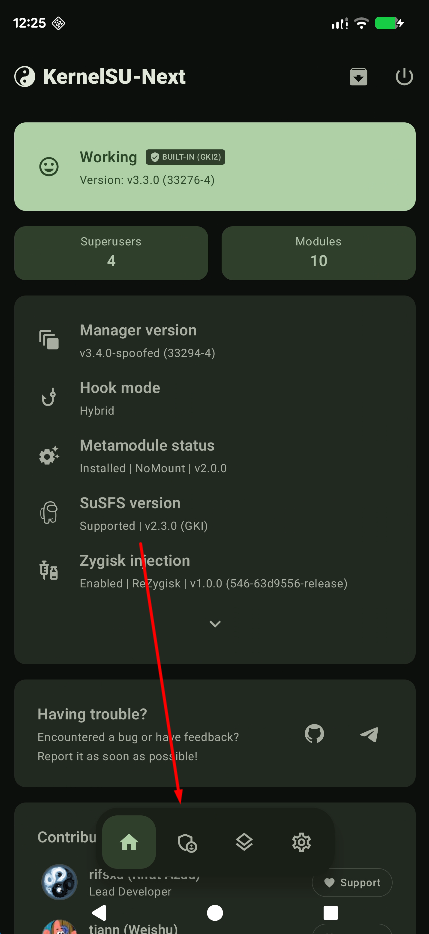
- Open KernelSU Next Manager and tap the Superuser tab
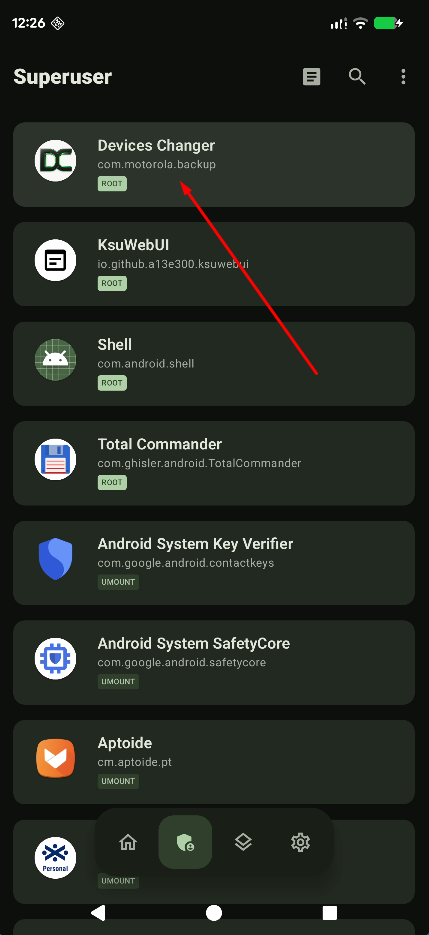
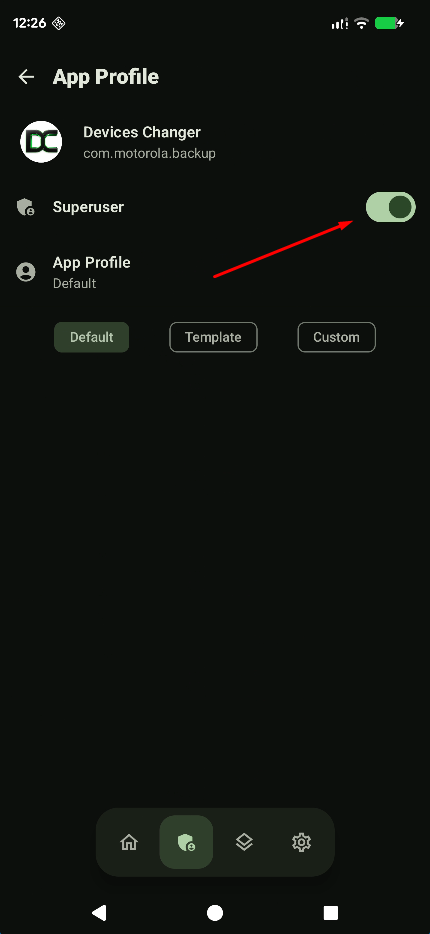
- Open Devices Changer and turn Superuser on
- Then open Device Changer
Step 3 — Install modules
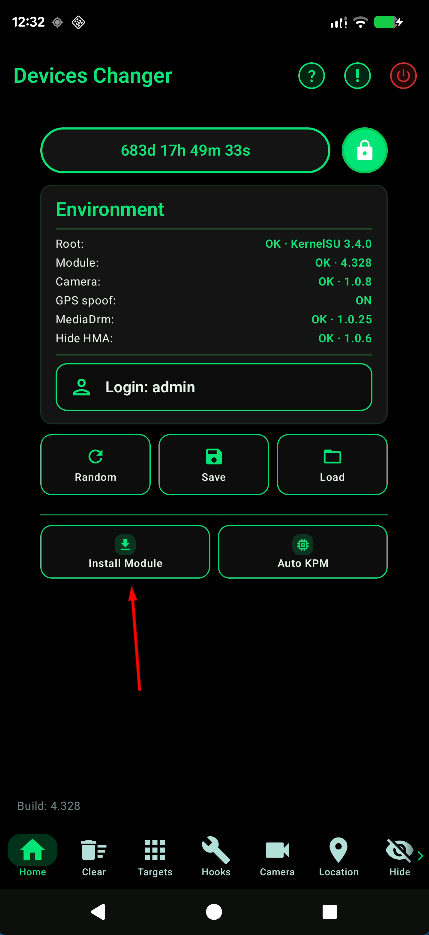
- On the Device Changer home screen, tap Install Module
- In Install modules, leave the required modules selected
- Tap Install
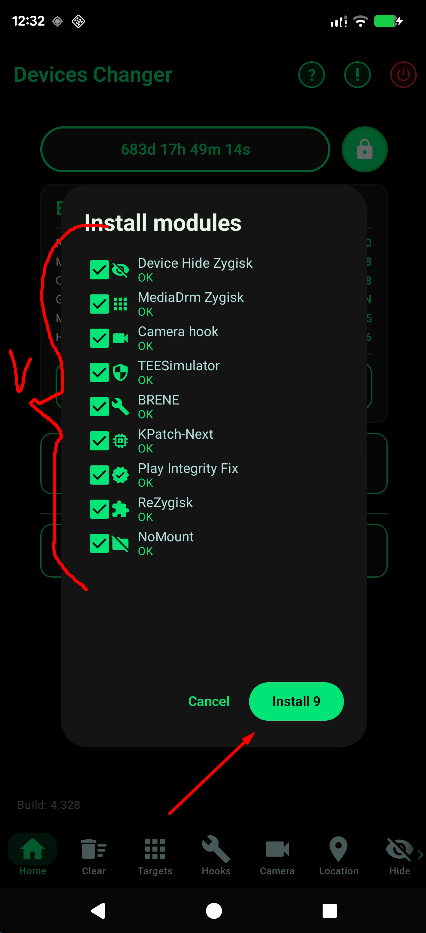
The list includes Device Hide Zygisk, MediaDrm Zygisk, Camera hook, TEESimulator, BRENE, KPatch-Next, Play Integrity Fix, ReZygisk, and NoMount.
Step 4 — Enable KPM
- Open KPatch first and confirm it is active
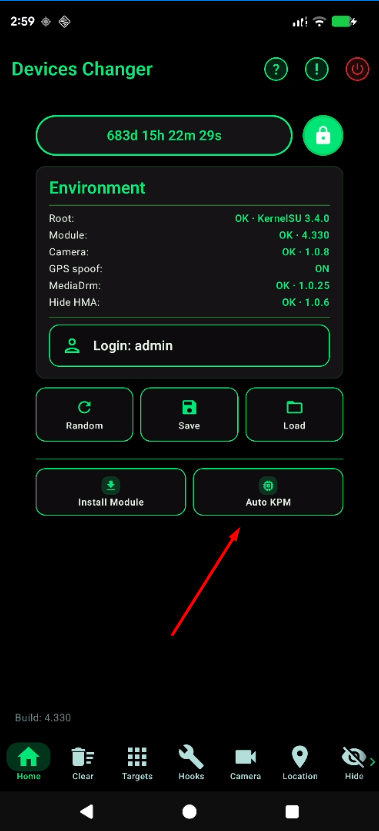
- On the Device Changer home screen, tap Auto KPM
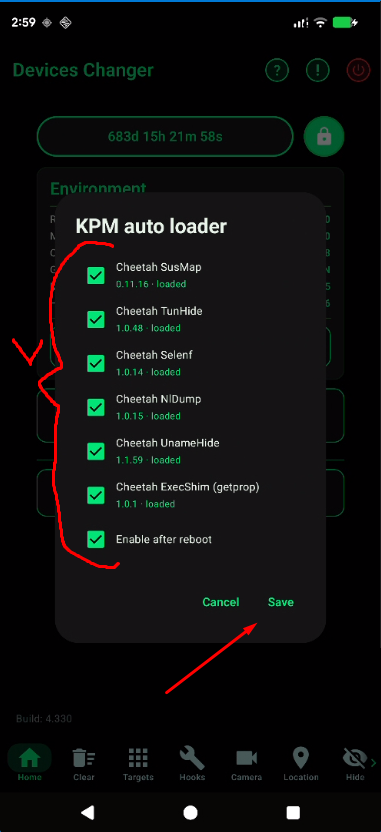
- Select the KPM modules, turn on Enable after reboot, and tap Save
Step 5 — Reboot
- Reboot the phone after the modules finish installing
- Open Device Changer again and check Environment on the home screen. Each installed module should show OK
Next, wire this setup into repeatable runs using Android testing workflows.
Related pages
Root installation · Android testing · Device simulation · FAQ guide